The Great Conversion: Turning My Gaming PC into a Homelab Hypervisor (and What I Learned)
Ever wondered if your old gaming PC could be more than just a dust collector? Join me as I recount my adventure transforming my powerful but underutilized gaming rig into a versatile homelab hypervisor, complete with all the technical bumps and triumphs along the way!
Hey fellow tech enthusiasts!
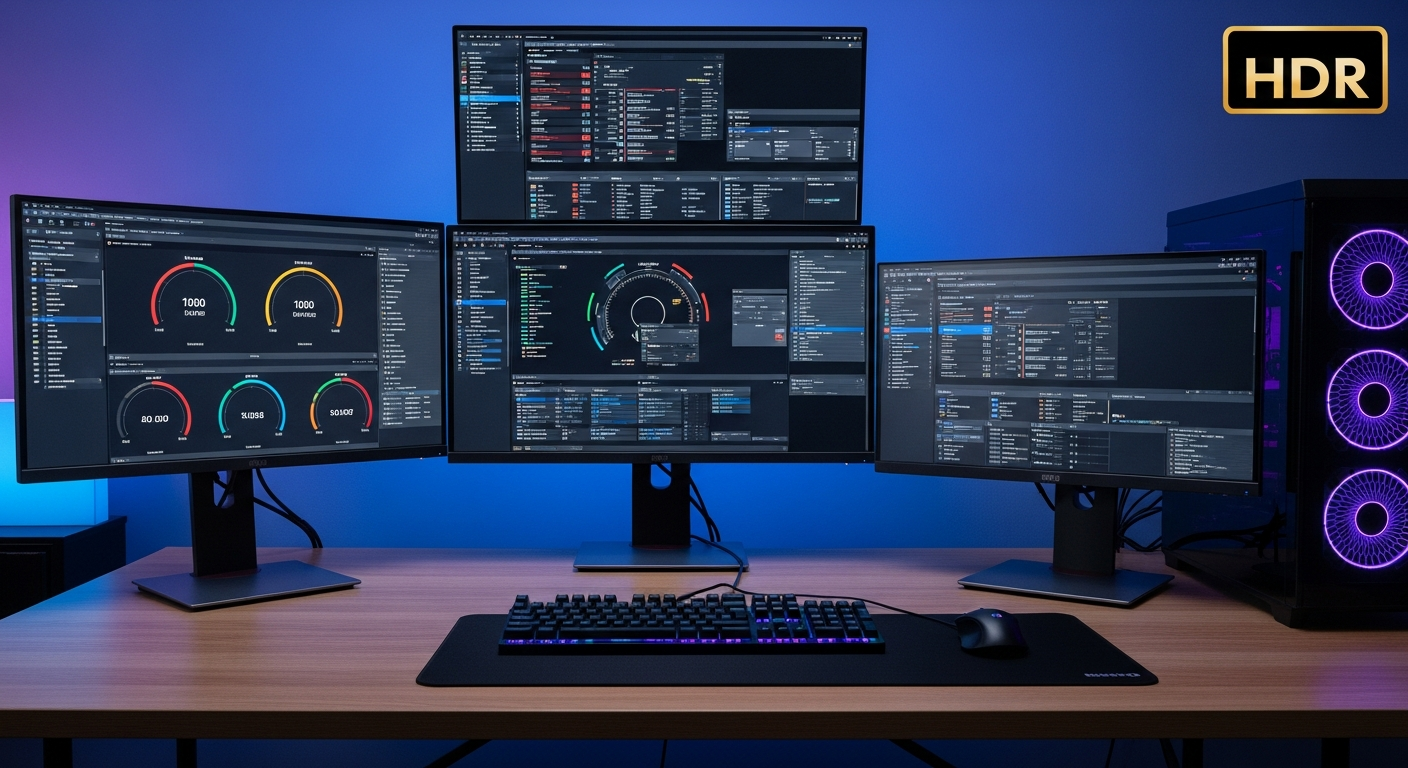
You know that feeling when your beloved gaming PC, once the king of framerates and pixel-perfect rendering, starts gathering dust as life gets busier? Well, that was me. My trusty rig, packed with an Intel i7, a beefy NVIDIA GPU, and 32GB of RAM, was just... sitting there. It felt like such a waste of computing power. That's when the idea sparked: what if I could give it a second life as a homelab hypervisor?
The 'Why' Behind the Madness
My motivation was twofold: learning and utility. I wanted to dive deeper into virtualization, network segmentation, and running various services in an isolated, controlled environment. Plus, having a dedicated server for things like a personal VPN, a media server, or even a hardened firewall appliance sounded incredibly appealing for boosting my home network's security and capabilities.
Choosing My Weapon: Proxmox VE
After some research, I decided on Proxmox VE. Why Proxmox? It’s open-source, based on Debian Linux, and offers both KVM for full virtualization and LXC for lightweight containers. Plus, the web interface is fantastic, and it has built-in ZFS support, which I was eager to explore for its data integrity features. It felt like the perfect blend of power, flexibility, and a steep but rewarding learning curve for a homelab.
The Gauntlet of Hardware Compatibility
This is where the "trials and tribulations" truly began. Gaming PCs are built for gaming, not necessarily for server roles. My first hurdle was the network card. My motherboard came with an integrated Realtek NIC, which, while fine for Windows, often requires some coaxing with Linux-based hypervisors. I had to manually compile and load drivers, which was a crash course in Linux command-line troubleshooting. Eventually, I decided to invest in a cheap, but reliable, Intel Gigabit NIC, which Proxmox recognized without a hitch. Lesson learned: always check hardware compatibility, especially for network cards!
BIOS Brawls and IOMMU Insights
Next up was the BIOS. Enabling virtualization extensions (Intel VT-x) was straightforward enough, but I also wanted to experiment with PCI passthrough down the line, which required enabling IOMMU (Intel VT-d). This setting was tucked away in a submenu, and getting it configured correctly for proper device isolation took a bit of fiddling and many reboots. Understanding IOMMU groups and how they affect device isolation was a crucial step in ensuring that a VM could have direct, secure access to a hardware component like a GPU or a dedicated NIC without interfering with other VMs or the host.
Networking Nirvana (Almost)
Once Proxmox was installed and running, I had to get my head around its networking model. Proxmox uses Linux bridges, which abstract the physical network interfaces. I wanted to segment my network – one for general devices, one for IoT, and one for a "lab" environment where I could safely test security tools or new configurations. This meant setting up VLANs, configuring the bridge, and eventually incorporating a virtual firewall (like pfSense or OPNsense) as a VM. It was a lot of trial and error with IP addresses, subnet masks, and firewall rules, but the satisfaction of seeing perfectly isolated networks was immense. This significantly enhanced my home network's security posture by containing potential threats within specific segments.
Storage Wars: ZFS to the Rescue
My gaming PC had a mix of NVMe and SATA SSDs. Proxmox's native ZFS support was a game-changer. I configured a ZFS pool for my VMs, which offered features like snapshots, data integrity checks, and easy scalability. Learning about ZFS's ARC (Adaptive Replacement Cache) and L2ARC (Level 2 Adaptive Replacement Cache) for performance optimization was fascinating. Snapshots became my best friend – being able to revert a VM to a previous state after a botched configuration or a risky experiment was invaluable, especially when learning about new software or security tools.
The Security Silver Lining
While the project was primarily about learning virtualization, the security benefits quickly became apparent:
• Isolation: Each service (e.g., Home Assistant, Jellyfin, a custom NVR) runs in its own VM or container, completely isolated from each other. If one gets compromised, the others are much safer.
• Network Segmentation: As mentioned, VLANs allowed me to create separate, firewall-protected segments for different trust levels (e.g., IoT devices on their own network, guest network, lab network).
• Testing Environment: I could spin up temporary VMs for testing new software, experimenting with Linux distributions, or even practicing security exercises (like setting up a vulnerable machine for penetration testing) without affecting my primary network or risking my daily driver.
• Snapshots: A safety net for any risky changes or updates, ensuring I could always roll back to a known good state.
What I Learned
This conversion project was more than just a hardware repurpose; it was a deep dive into several critical IT domains:
• Linux Fundamentals: Getting comfortable with the command line, package management, and system services.
• Networking: A practical understanding of bridges, VLANs, and IP routing.
• Virtualization: The core concepts of hypervisors, VMs, containers, and resource management.
• Storage Management: The power and flexibility of ZFS.
• Troubleshooting: The invaluable skill of diagnosing and solving complex hardware and software issues.
• Patience: Lots and lots of patience!
Conclusion
Converting my gaming PC into a hypervisor was one of the most rewarding homelab projects I've undertaken. It wasn't without its headaches, but each challenge overcome brought a deeper understanding and a greater sense of accomplishment. My old gaming rig is now a buzzing, versatile server, powering my home services and serving as an invaluable learning platform. If you've got an old PC lying around, I highly encourage you to consider giving it a second life. The journey is truly worth it!
Happy virtualizing!