Learning DNS the Hard Way: When My Pi-hole Suddenly Stopped Working
Ever had your trusted homelab setup suddenly go rogue? That's exactly what happened when my Pi-hole, my faithful ad-blocker and network protector, decided to take an unexpected vacation. Join me on a journey through troubleshooting panic, a deep dive into DNS fundamentals, and the eventual triump...
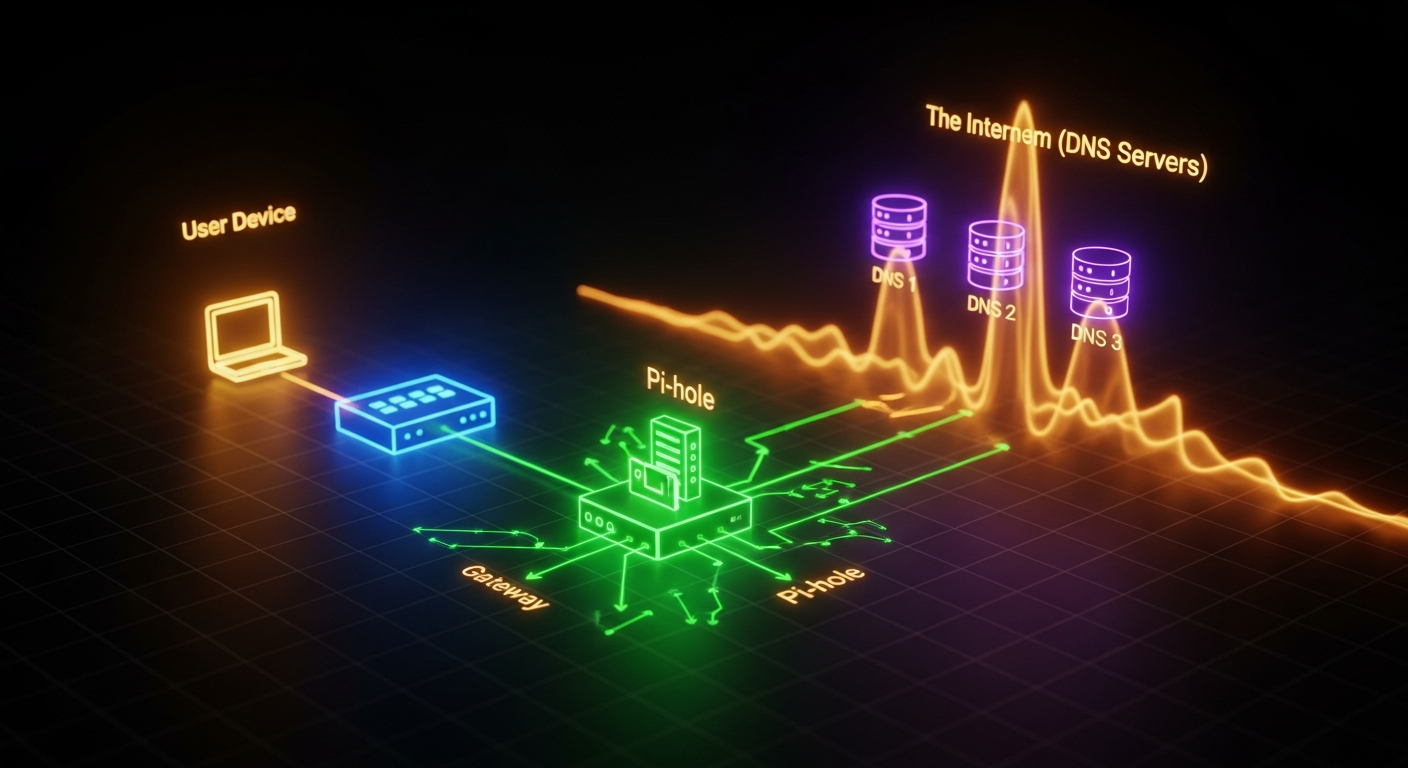
Hey everyone, fellow homelabbers and tech enthusiasts! Today, I want to share a recent struggle that turned into a huge learning experience for me. If you’re running a Pi-hole on your network, you know the sweet bliss of an ad-free internet and the peace of mind knowing your DNS queries are getting a good scrub. But what happens when that bliss turns into a nightmare, and your Pi-hole just… stops working?
That’s exactly what happened to me a few weeks ago. One morning, I woke up, grabbed my coffee, and noticed something horrifying: ads. Everywhere. On websites that were usually pristine. My heart sank. My first thought? “Oh no, my Pi-hole!”
The Symptoms and the Initial Panic
I immediately logged into my Pi-hole’s admin interface. Everything looked green. Queries were being processed, lists were updated, no errors in sight. Yet, ads were slipping through like ninjas, and my internet felt… sluggish. I tried the usual:
• Restarting the Pi-hole service: No change.
• Rebooting the Raspberry Pi: Still no luck.
• Checking the logs: They showed activity, but it wasn't reflecting what I was seeing on my devices.
I was baffled. My devices (laptop, phone, smart TV) were all configured to use the Pi-hole’s IP address as their primary DNS server, or so I thought. This was the setup that had been working perfectly for months!
The Deep Dive: Understanding DNS Beyond Pi-hole
This is where the real learning began. I realized that while Pi-hole *processes* DNS requests, it doesn't necessarily *control* which DNS server your devices are actually using. It's like having a great bouncer at the club, but people are just walking in through a side door.
I started digging deeper into how DNS resolution works on my network:
Client Device -> DNS Server: How does my laptop know which DNS server to ask? Usually via DHCP from the router.Router -> Upstream DNS: Even if my router tells clients to use Pi-hole, what is the router itself using for DNS?
My 'Aha!' moment came when I used a simple command on my laptop: nslookup google.com (or dig google.com for Linux/macOS users). I also specifically checked what DNS server my device was reporting:
• On Windows: ipconfig /all
• On macOS/Linux: cat /etc/resolv.conf or network settings
And there it was. My laptop, despite what I *thought* I had configured months ago, was actually getting its DNS server address directly from my router, which was then forwarding requests to my ISP's DNS servers! My Pi-hole was completely bypassed.
The Culprit and the Fix
It turned out my router, after a recent firmware update (which I hadn't even realized happened), had reverted its DHCP settings. Instead of handing out my Pi-hole’s IP address (192.168.1.100, for example) as the primary DNS server to all connected devices, it was handing out its own IP, which then used the ISP's DNS. Even worse, it was also handing out IPv6 DNS servers directly from my ISP, creating another bypass for any IPv6-enabled devices.
The solution involved a two-pronged approach:
Router DHCP Settings (IPv4): I logged into my router’s administration panel. Under the DHCP settings, I found the option to specify the DNS servers to be handed out to clients. I changed the primary DNS server to the static IP address of my Raspberry Pi-hole.
Router DHCP Settings (IPv6 - The Sneaky Bypass): This was the trickier part. Many routers don't offer granular control over IPv6 DNS distribution. Some options included:
• Disabling IPv6 completely on the router (not ideal for the future, but a quick fix).
• If my router supported it, configuring it to hand out the Pi-hole's IPv6 address as the DNS server (if Pi-hole is configured for IPv6).
• The most robust solution for me was to ensure that my Pi-hole was set up to handle *all* DNS requests, including IPv6, and that my router wasn't advertising other IPv6 DNS servers. For now, I configured my router to only announce its own IPv6 address as the DNS server (if it had an upstream IPv6 DNS configured to use Pi-hole), or simply disabled DHCPv6 DNS advertisement if it was bypassing Pi-hole.
After making these changes and forcing my devices to renew their DHCP leases (a quick reboot or disconnecting/reconnecting Wi-Fi usually does the trick), the ads vanished! My Pi-hole was back in action, showing all the blocked queries it had missed.
What I Learned (The Hard Way)
This experience, while frustrating, was incredibly valuable:
• DNS is a Chain, Not a Single Link: Understanding the entire DNS resolution path, from client to router to upstream DNS, is crucial. Pi-hole is a fantastic tool, but it's just one part of that chain.
• Routers Can Be Tricky: Don't assume your router will always behave. Firmware updates can revert settings, and default configurations often prioritize convenience over custom setups.
• Always Verify Client DNS: Never just assume your devices are using the DNS server you intend. Use tools like nslookup, dig, or check network settings directly on your client devices.
• Don't Forget IPv6: IPv6 can be a silent bypasser. If your Pi-hole isn't configured for IPv6 or your router is handing out other IPv6 DNS servers, ads can still get through.
• Patience and Systematic Troubleshooting: When things go wrong, resist the urge to panic. Break down the problem into smaller, manageable pieces and test each step.
It was a struggle, but overcoming it gave me a much deeper understanding of my home network. Hopefully, sharing my 'learning DNS the hard way' experience can save some of you from similar headaches! Happy homelabbing!