From Gaming Rig to Homelab Powerhouse: My Hypervisor Conversion Saga
Ever wondered if your trusty gaming PC could do more than just fragging virtual enemies? I did! Join me on my journey of converting my high-octane gaming machine into a powerful Proxmox hypervisor, tackling driver demons, network woes, and learning a ton along the way.
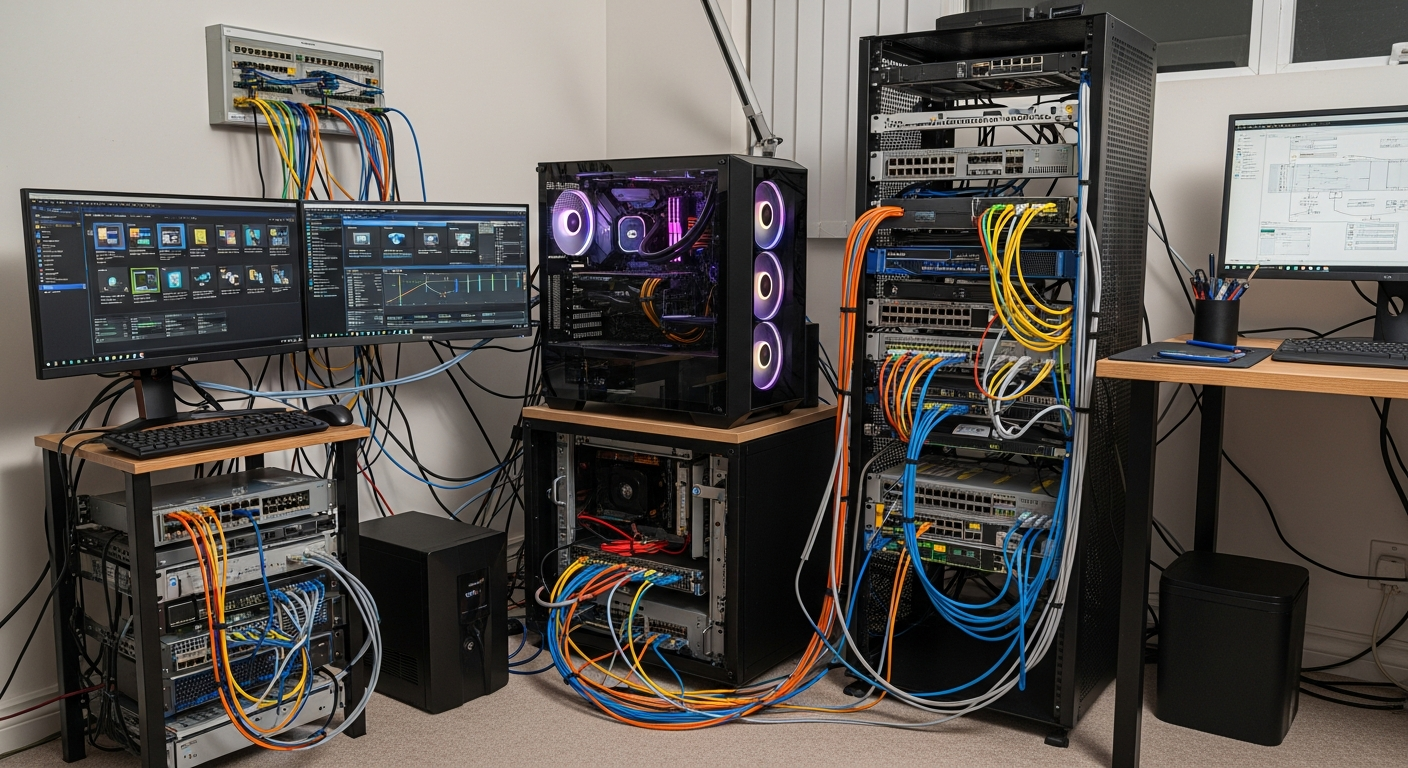
The Homelab Bug Bites: Why Convert My Gaming PC?
Like many of you, I caught the homelab bug. My dedicated gaming rig was a beast: a powerful Ryzen CPU, 32GB of RAM, an NVMe SSD for the OS, and a couple of SATA SSDs for games. It sat there, humming away, mostly idle when I wasn't glued to a monitor. I started thinking, 'What if this powerhouse could do more?' I craved a dedicated server for Plex, Home Assistant, a virtualized router, and some experimental VMs. Buying new hardware seemed excessive when I had so much raw power sitting right next to me. The decision was made: my gaming PC was going to become a hypervisor!
Choosing My Weapon: Proxmox VE
After a fair bit of research, I settled on Proxmox VE. I considered ESXi, but the driver compatibility for consumer-grade hardware and the free tier limitations pushed me towards Proxmox. Hyper-V was an option, but I wanted something Linux-based and open-source, offering both VMs and LXC containers. Proxmox, with its Debian base and built-in ZFS support, seemed like the perfect blend of power and flexibility.
The Trials Begin: Installation & Driver Hell
1. The Boot Drive Dilemma
My first hurdle was surprisingly basic: creating a bootable USB drive that my motherboard would actually recognize. My gaming rig's BIOS was configured for optimal gaming performance, meaning UEFI with Secure Boot enabled. After a few failed attempts and a quick dive into the BIOS settings, disabling Secure Boot and ensuring the USB was formatted correctly (using Rufus in DD image mode for Proxmox), I finally saw the Proxmox installer screen. Phew!
2. Storage Strategy and ZFS
Next came storage. I had my NVMe drive (where Windows used to live) and two SATA SSDs. I decided to dedicate the NVMe to Proxmox itself and use one of the SATA SSDs for my VM and container storage, leveraging Proxmox's fantastic ZFS integration. This was a learning curve. Understanding ZFS pools, datasets, and how they interact with VMs took some reading, but the promise of data integrity and snapshotting was too good to pass up.
3. The Network Interface Card (NIC) Nightmare
This was arguably my biggest headache, and directly relevant to the 'networking' category! My gaming motherboard came with a Realtek Gigabit Ethernet controller. While perfectly fine for Windows, Proxmox (based on Debian) didn't have native support for it out-of-the-box. The installer would complain about no network device found. I felt a pang of despair. How could I run a hypervisor without network access?
After scouring forums, I learned about compiling drivers or using community-maintained packages. I ended up having to boot into a temporary Debian live environment, download the correct Realtek driver source, compile it, and then load the module. It was a painstaking process, requiring a secondary machine to download files and transfer them via USB. This experience hammered home the importance of checking hardware compatibility lists before you start a project like this. If I had known, I might have bought an inexpensive Intel NIC.
First Victories: Virtualizing My Network
With the network card finally purring, I could dive into the real fun. My first critical VM was a virtualized router/firewall: OPNsense. This was a game-changer for my home network. I passed through a cheap, dual-port Intel PCIe NIC I bought specifically for this purpose (learning from my Realtek ordeal!). Setting up virtual bridges in Proxmox, creating VLANs, and configuring OPNsense to handle all my network traffic was incredibly satisfying. It instantly elevated my home network's security and flexibility.
I also spun up a Pi-hole container, a dedicated Ubuntu Server VM for Docker containers (Plex, Sonarr, Radarr, etc.), and a Home Assistant VM. The ability to snapshot VMs before making major changes became my new best friend!
Lessons Learned and the Road Ahead
Converting my gaming PC was definitely a journey of trials and tribulations, but the lessons learned were invaluable:
• Hardware Compatibility is King: Always, always check driver support for your chosen hypervisor, especially for consumer-grade NICs and motherboards.
• BIOS/UEFI Settings Matter: VT-x/AMD-V, IOMMU, and Secure Boot are crucial settings to configure correctly.
• Resource Allocation: Don't over-allocate resources to your VMs. The host needs its share too!
• Virtual Networking Fundamentals: Understanding bridges, VLANs, and virtual switches within Proxmox is fundamental for a robust homelab.
• ZFS is Your Friend: For data integrity and easy snapshots, ZFS is a powerful tool.
My gaming PC now runs 24/7, quietly powering my entire digital home. While I haven't attempted GPU passthrough yet (that's a whole other can of worms for a single GPU setup!), I'm thrilled with its new life. It's no longer just a gaming machine; it's a versatile, powerful homelab server that has taught me more about virtualization and networking than any textbook ever could. If you're considering a similar conversion, I highly encourage it – just be prepared for a few bumps in the road!